Import Transactions
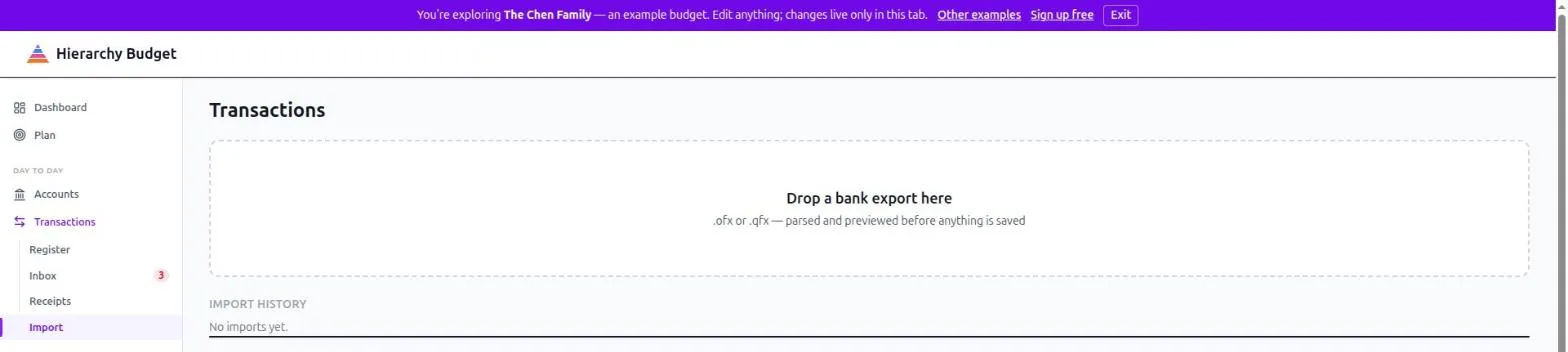
Bring history in from a bank statement file. Go to Transactions > Import to get started.
Importing is for backfilling - the first load of history, or an account your bank won’t sync. Day to day, Bank Sync pulls transactions on its own and you never touch a file.
Supported Files
.ofx and .qfx - the statement download format nearly every bank offers, usually labelled “Quicken”, “Microsoft Money”, “OFX” or “Web Connect” in your bank’s download menu. It carries dates, amounts, descriptions and the bank’s own transaction IDs, which is what makes duplicate detection reliable.
If your bank offers CSV as well, take the OFX/QFX option - it imports more cleanly. This page does not accept CSV.
How It Works
1. Drop the file
Drag the file onto the page, or click to browse. It’s parsed immediately and nothing is saved yet.
2. Check the preview
You’ll see what the file contained: the accounts inside it, the balances, and the transactions themselves. Read it before committing - this is the point at which mistakes are cheap.
3. Pick the account
Choose which of your accounts these transactions belong to.
4. Import
Everything in the preview is written in one batch, stamped with the file it came from. The confirmation tells you how many transactions were created and how many duplicates were skipped.
After the Import
Imported transactions land uncategorized and go to the Inbox for review. The app groups them by payee, suggests categories where it’s confident, and learns a rule each time you approve one - so the second import is much less work than the first.
They also immediately count toward your actuals on Plan > Budget and Plan > Annual. Categorizing decides where they land, not whether they land.
Import Batches
Every import is recorded as a batch: the file name, when it ran, how many transactions it created, and how many duplicates it skipped. Past batches are listed on the same page.
If an import goes wrong - wrong account, wrong file - undo the whole batch rather than deleting rows one at a time. That removes exactly what the import created and nothing else.
Duplicates
Re-importing an overlapping date range is safe. Transactions carry the bank’s own transaction IDs, so rows you already have are detected and skipped rather than created twice.
Tips
Import oldest first. Categorization rules learned from early transactions apply to everything imported after.
Backfill as far as you can. Plan > Calibrate and Settings > Recurring both improve with history - recurring detection reads the last 15 months.
Reconcile after a big import. Once history is in, reconcile against a statement so you know the balance is right.
Other Ways In
- Bank Sync - connect the bank once, pull new transactions whenever you like
- Receipts - photograph or forward a receipt and it becomes a transaction
- Add manually - the + Add transaction button on the register
Related Pages
- Transactions > Import - Import a statement file
- Bank Sync - Automatic transaction feeds
- Reviewing Transactions - Categorize what you imported
- Accounts & Register - Where transactions live